Flutter is a multi platform development framework that is made by Google team to accelerate the process of developing multi platform apps on a single codebase. It is a versatile tool for developers as it has a dedicated team of developers and a superb quality of documentation behind it.
But, as with any software, there are some problems that you might face when you're trying to install it on your machine
Installation problems
When I was trying to install flutter on my machine, I faced some problems that I want to share with you.
First of all; before installation, you have to have:
- Git
- Powershell or a cmdline software.
- Minimum 7gb of disk space
After you have these, you can start the installation process.
First, you have to clone the flutter repository from the github. You can do this by typing the following command in your terminal:
git clone https://github.com/flutter/flutter.git
After you have cloned the repository, you have to add the flutter/bin directory to your PATH variable. Now this step is where I have stuck earlier when installing flutter, as I didn't realize I had to add the bin folder, so I only added flutter folder which unsurprisingly it did not work
After you have added the bin folder to your PATH variable, you can run the following command to check if the flutter is installed correctly:
flutter doctor
flutter doctor --android-licenses
After you have ran this command, you will see the output of the flutter doctor command. Now the next step involves downloading and installing Android Studio which is a straightforward process. Even if you don't use the Android Studio which is powered by Jetbrains IDE, you have to install it because it is needed to download android toolchain
After you have installed the Android Studio, you have to open it and go to the settings. In the settings, you have to go to languages section where there is an Android SDK section where you can download the Android Command Line Tools.
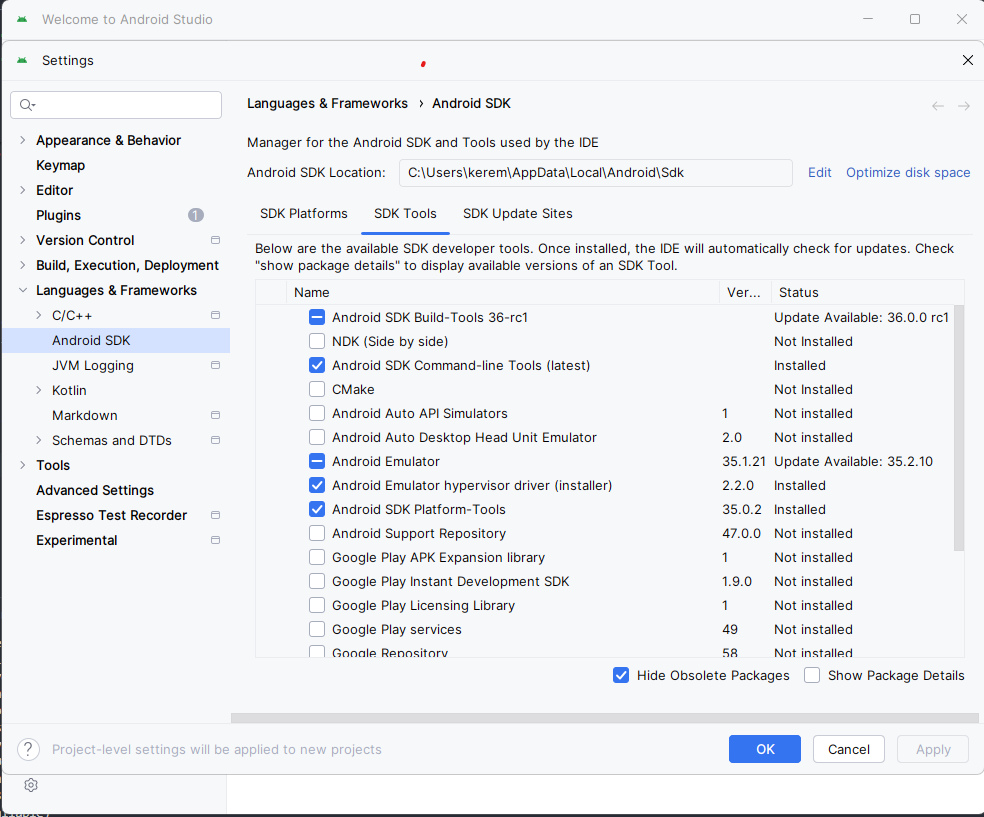
After you have downloaded the tools, you can close the Android Studio and go back to the IDE of your choosing and start developing awesome apps!